BlackHole alternative for Mac: record system audio directly
Published · Updated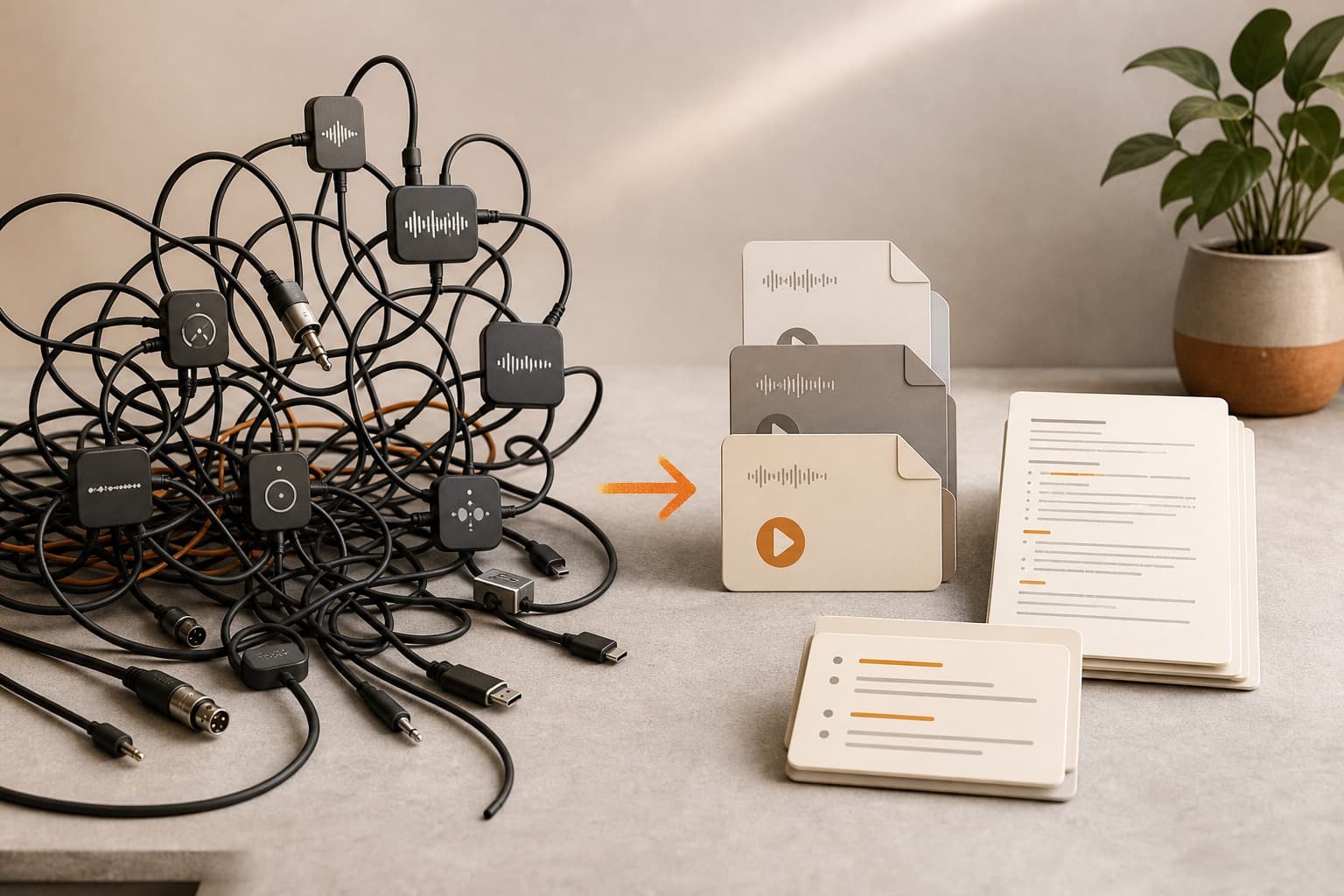
If you are searching for a BlackHole alternative for recording Mac audio, the real question may not be which virtual audio driver to install. Often the job is simpler: you want to capture system audio from your Mac, maybe include your microphone, and keep a clean local audio file you can review later. BlackHole is useful when you need audio routing. A local recorder is useful when you need a saved recording.
BlackHole alternative for Mac: choose by the output you need
Choose BlackHole when another app must receive your Mac's audio as an input. It is the right category for sending system audio into OBS, a DAW, a stream, or a custom virtual-device chain.
Choose Transcrio when the result you need is a recording saved on your Mac. Download Transcrio for Mac to capture microphone and system audio, keep local source files, and optionally create a transcript and summary. If you only need audio, turn off Transcribe after recording so the session uses no transcription minutes. The microphone and system audio guide shows the complete setup.
Route Mac audio into another app through a virtual audio device.
Record microphone and system audio into files saved on your Mac.
OBS, DAWs, streaming, monitoring, and custom audio chains.
Calls, lectures, browser audio, voice notes, transcripts, and summaries.
An audio signal available to another app; a separate recorder is still needed.
Local .m4a audio files, plus an optional transcript and summary.
It does not create a transcript or meeting-note workflow by itself.
It is not a virtual audio device and cannot route audio into other apps.
What BlackHole is actually for
BlackHole's official project documentation describes it as a macOS virtual audio loopback driver. In plain English, it creates an audio device that lets one app send audio to another app. That is powerful when your goal is routing, not just recording.
For example, you might use BlackHole to send desktop audio into OBS, route audio from a browser into a DAW, or build a multi-output device so you can monitor audio while another app receives it. BlackHole also exposes driver-level flexibility such as different channel builds and broad sample-rate support.
- Use it when another app must receive system audio as an input.
- Use it when you are comfortable choosing virtual input and output devices.
- Use it when your workflow belongs in OBS, a DAW, a stream, or a custom audio chain.
- Do not expect it to be a note-taking or transcript workflow by itself.
Where BlackHole can be more setup than you need
BlackHole solves a routing problem, which means the setup often includes routing concepts: virtual devices, Audio MIDI Setup, multi-output devices, aggregate devices, app input selection, app output selection, and monitoring. That is exactly what some users need.
But if your actual job is record this Mac audio and keep the file, that can be more machinery than necessary. You may not need to build an audio chain just to save a webinar, browser audio, lecture, call, or quick voice note.
- You may need to decide which app sends audio and which app receives it.
- You may need a multi-output or aggregate device if you also want to hear the audio.
- You still need another app to make the final recording.
- You still need a separate workflow if you want transcripts, summaries, or reusable notes.
Use Transcrio when you need a recorder, not routing
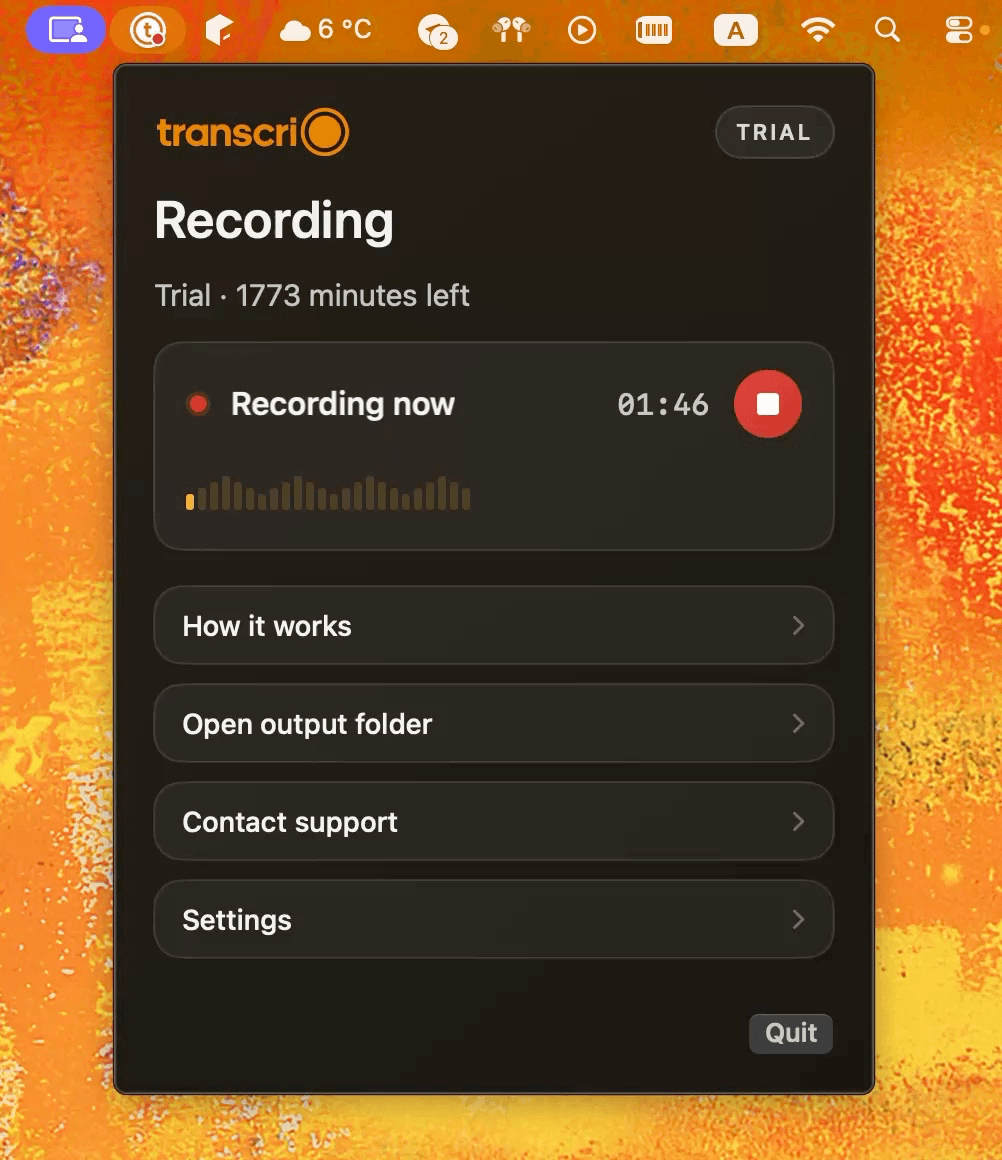
Transcrio is a macOS app for recording microphone and system audio, keeping source files locally, and creating transcripts and summaries after recording. The workflow starts from the menu bar: open Transcrio, choose whether you want transcription after recording, start recording, stop when the useful audio ends, then keep the local session files.
This is different from a virtual audio driver. Transcrio is not trying to become a system-wide routing layer. It is meant for situations where the useful output is a recording you own: the source audio, and optionally the transcript and summary.
After you stop, Transcrio always saves recording_stereo.m4a as an AAC .m4a file at 128 kbps. When Keep separate mic/system source files is enabled, it also keeps raw_mic.m4a and raw_system.m4a. When transcription is enabled, recording_stereo.m4a is the file used for transcription. When transcription is disabled, the app stays in local-only recording mode.
- Turn Transcribe after recording on when you want transcript and summary outputs.
- Turn Transcribe after recording off when you only want local audio files.
- Keep Prevent Mac sleep during recording on for longer sessions.
- Use the local session folder as the source of truth for later review.
See the Transcrio workflow
From recording on a Mac to a local transcript and summary.
Take a 1-minute interactive tour — no signup required.
Open in a new tabThe honest tradeoff
A good BlackHole alternative for recording Mac audio is not always another routing tool. Sometimes it is a simpler recorder. The tradeoff is that you gain a direct recording-to-files workflow, but you give up pro-audio routing control.
Transcrio is strongest when you want to record calls, lectures, voice notes, browser audio, videos, or system audio without inviting a meeting bot, relying on organizer recording controls, or configuring a virtual audio chain.
- Strength: one menu bar workflow for microphone plus system audio.
- Strength: original audio remains on your Mac, even if the transcript or summary misses detail.
- Strength: transcription and summary are optional, not required for every recording.
- Limit: Transcrio is not a virtual audio device and does not route audio into other apps.
- Limit: Transcrio does not expose custom quality, bitrate, channel, or format controls.
- Limit: final local audio artifacts are currently AAC .m4a at 128 kbps.
- Limit: Transcrio requires macOS 15 or newer, and one continuous session is capped at 6 hours.
Decision guide
Choose based on the artifact you need at the end. If the output is another app receiving audio, use a routing tool. If the output is a saved recording with optional text, use a recorder-first workflow.
This distinction keeps the comparison fair. BlackHole, OBS, Audio Hijack, Loopback, and Transcrio can all be valid choices, but they are optimized for different jobs. The Audio Hijack comparison covers advanced capture and fully local transcription, while the Soundflower replacement guide starts from an older virtual-device setup.
- BlackHole: best when you need to route system audio into another app.
- OBS: best when video capture, scenes, overlays, or streaming are part of the job.
- Audio Hijack: best when you want advanced app-level audio capture, recording, and processing.
- Loopback: best when you need flexible virtual audio routing between apps and devices.
- Transcrio: best when you want a local audio file, optional transcript, optional summary, and reusable files.
Example workflows
For browser audio, you can avoid building a routing chain. Open the website, start Transcrio from the menu bar, play the useful section, stop recording, then keep the local audio file. If you want notes, leave transcription enabled; if you only need the recording, disable it first.
For a call where bots or host permissions do not fit, record from the Mac instead of depending on the platform recorder. This can work for video calls, phone-style calls, FaceTime-style calls, lectures, videos, or quick dictation, as long as recording is appropriate for your situation.
- Browser audio: record the useful section and keep the source file beside your notes.
- Calls without bots: capture microphone and system audio without adding a meeting participant.
- Lectures and videos: record the audio, then optionally turn it into study notes or a summary.
- Audio-only archive: disable transcription and keep Transcrio as a local recorder for that session.
What to keep after recording
If the recording matters, keep the original audio. Source audio is the file you can return to when a transcript, summary, or memory of the conversation misses something. A local recording is especially useful when you plan to search the transcript later or reuse the material in another AI tool.
When transcription or summary is enabled, Transcrio handles the recording temporarily for processing. Transcrio does not keep your audio, transcripts, or summaries as long-term product storage. The working files remain in your local session folder on your Mac.
- Keep audio when you may need to verify exact wording.
- Keep transcript when search and reuse matter.
- Keep summary when review speed matters.
- Keep all three when the recording may become future project context.
Next steps
FAQ
Is BlackHole audio safe for Mac?
BlackHole is an open-source macOS audio driver. Its official project says it requires no kernel extensions or modifications to system security. It is still system audio software, so use the official installer or Homebrew package and follow the project's current installation instructions.
What is a BlackHole alternative for Mac if I only need recording?
Use a recorder that captures system audio directly and saves a local file. Transcrio records microphone and system audio from the Mac menu bar, with optional transcription and summary, but it does not replace BlackHole's virtual audio routing.
Is Transcrio a full BlackHole replacement?
No. Transcrio is not a virtual audio driver or routing tool. It is a local Mac recorder for microphone and system audio with optional transcription and summary.
Can I record Mac system audio without BlackHole?
Yes, if your goal is a saved recording rather than routing audio into another app. Transcrio records system audio and microphone audio from the Mac menu bar.
Can I use Transcrio only as an audio recorder?
Yes. Turn off Transcribe after recording. Transcrio will save local audio artifacts only, skip backend transcription and summary, and use no transcription minutes.
When should I still use BlackHole?
Use BlackHole when you need a virtual audio device, need to send system audio into OBS or a DAW, or want to build a custom audio routing chain.
Does Transcrio store my recordings in the cloud?
Transcrio keeps the source audio and generated text files on your Mac. When transcription or summary is enabled, processing is temporary; Transcrio does not keep audio, transcripts, or summaries as long-term product storage.