How to turn a customer support call transcript into a knowledge base article

A useful customer support call often contains the exact explanation your next customer will need. The problem is that the explanation disappears into a call recording, a ticket note, or someone's memory. If you record the call, keep the transcript, and turn the repeated answer into a knowledge base draft, one support conversation can become reusable support knowledge.
Short answer
To turn a customer support call transcript into a knowledge base article, record the call, save the original audio, generate a transcript, mark the reusable explanation, remove customer-specific details, then rewrite the answer as a step-by-step article with symptoms, cause, fix, and verification steps.
This works best for support calls where the same question comes up repeatedly, the fix has a stable process, or the customer said the problem in clearer language than your internal docs. Use a ticket note when the issue is one-off. Use a knowledge base draft when the explanation can help many future customers.
Choose the right support call
Not every support call should become a help article. The best candidates are calls where a customer explains a confusing setup step, a repeated billing question, a permission problem, an import/export workflow, or a workaround that is safe to share publicly.
A strong candidate usually has two parts: the customer's language for the problem and the support team's explanation for the fix. The transcript lets you preserve both instead of writing from memory.
- Pick repeated questions, not isolated edge cases.
- Prefer stable workflows that will still be true next month.
- Look for calls where the customer struggled to find the answer before contacting support.
- Avoid turning account-specific incidents into public documentation.
Capture the support call as source material
Before the call, set up a recorder that captures both microphone and system audio. With Transcrio, you can record from the macOS menu bar, keep the source audio on your Mac, and generate a transcript and summary after the call. For support documentation, keep Transcribe after recording enabled so the transcript is created automatically.
The source audio matters because the transcript or summary may miss a small but important detail. When the draft says something uncertain, you can return to the original support call instead of guessing.
- Start recording before the customer describes the issue.
- Add a short title after the call, such as the product area and problem type.
- Use speaker names if they make the transcript easier to review.
- Keep the original audio, transcript, and summary in the same local session folder.
See the Transcrio workflow
From recording on a Mac to a local transcript and summary.
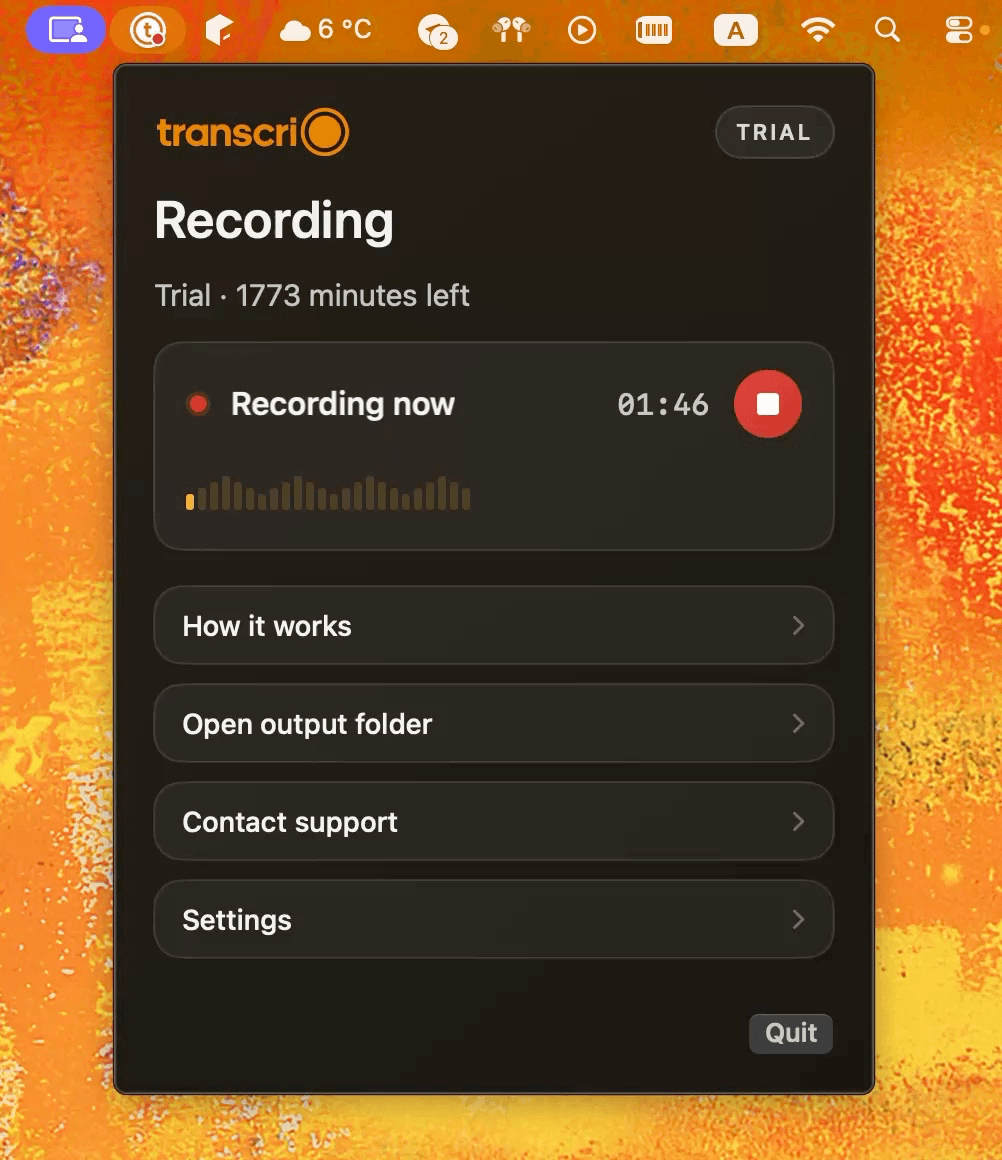
Take a 1-minute interactive tour — no signup required.
Open in a new tabExtract the reusable support answer
Read the transcript once for the full story, then a second time for reusable material. The goal is not to copy the call into the knowledge base. The goal is to find the stable answer hidden inside the conversation.
Mark the parts that explain what the customer was trying to do, where the workflow failed, what fixed it, and how support confirmed that the fix worked. Those pieces become the spine of the article.
- Customer goal: what they were trying to accomplish.
- Symptom: what they saw or heard when it failed.
- Cause: the shortest accurate explanation.
- Fix: the steps that solved it.
- Verification: how the customer can confirm it worked.
- Escalation: when they should contact support instead of continuing alone.
Remove customer-specific details before drafting
A support call transcript is raw source material, not publishable documentation. Remove names, company details, emails, account IDs, billing data, screenshots, private URLs, internal comments, and anything that only applies to one customer's setup.
This step also improves the article. Public help content should describe the general problem in the reader's language, not retell one customer's private case.
- Replace personal or account-specific details with generic terms.
- Remove internal debugging notes that customers should not follow.
- Keep only the parts that explain a safe, repeatable workflow.
- If the fix depends on a plan, permission, or product version, say that explicitly.
Turn the transcript into a knowledge base draft
A useful knowledge base article is usually shorter and more structured than the call. Start with the customer's search phrase, then write the answer in the order the reader needs it: when to use the article, what to check first, the exact steps, expected result, and what to do if it still fails.
If you use AI to create the first draft, give it the transcript plus a strict structure. Ask it to write from the customer's point of view, preserve only reusable facts, and flag anything that needs product verification before publication.
- Title: name the task or problem in customer language.
- Applies to: product area, plan, platform, or permission level if relevant.
- Before you start: prerequisites and information to gather.
- Steps: the shortest safe path to the fix.
- Expected result: what the customer should see after the fix.
- Still stuck: what to include when contacting support.
Use a repeatable prompt
A reusable prompt keeps every support-derived article consistent. Paste the transcript, add a short description of the product area, and ask for a draft that separates customer language from internal assumptions.
For example: turn this support call transcript into a public knowledge base draft. Remove customer-specific details. Keep only repeatable steps. Use sections for problem, when this applies, steps, expected result, and when to contact support. List any claims that need product verification before publishing.
- Ask for a draft, not a final article.
- Ask the model to identify missing product facts instead of inventing them.
- Ask for customer-facing language, not internal support shorthand.
- Save the final prompt if this becomes a regular documentation workflow.
Review the draft before publishing
The transcript gives you evidence, but it does not replace review. Before publishing, check the draft against the product, support policy, current UI, and any billing or privacy rules that affect the answer.
A good review loop is simple: support checks accuracy, product checks whether the workflow is still intended, and someone edits for clarity. If the article describes a workaround, decide whether it belongs in public docs or only in internal support notes.
- Verify each step in the current product.
- Confirm the article does not expose private customer context.
- Remove any promise support cannot consistently keep.
- Add internal links to related help articles when they reduce repeat tickets.
- Keep the source transcript available for a short review window if your policy allows it.
Example workflow
A customer calls because they cannot find where exported files are saved. During the call, support explains the folder location, the file names, and how to verify the export. The transcript shows the exact confusion: the customer searched in the app, but the files were in a local folder.
The knowledge base draft should not mention that customer's account. It should become a general article: where exported files are saved, how to open the folder, what each file is for, and what to do if the folder is missing.
- Support call: one customer cannot find exported files.
- Reusable issue: other customers may not understand local output folders.
- Draft title: where to find your exported recording files.
- Article sections: folder location, file types, verification, troubleshooting.
What to keep after the article is published
Keep the source audio and transcript long enough to verify the draft and answer review questions, then follow your retention policy. For many teams, the published article becomes the durable artifact, while the raw support call remains controlled source material.
Transcrio keeps the source audio and generated text files on your Mac. When transcription or summary is enabled, processing is temporary; Transcrio does not keep audio, transcripts, or summaries as long-term product storage.
- Keep the final article where customers can find it.
- Keep internal notes if support needs escalation context.
- Keep source files only as long as they have a review or compliance purpose.
- Delete or archive raw call material according to your team's policy.
Next steps
FAQ
Can a support call transcript become a knowledge base article?
Yes, if the call contains a repeatable customer problem and a stable solution. Remove customer-specific details and rewrite the transcript into a structured help article.
What should I remove from a support call transcript before publishing?
Remove names, company details, emails, account IDs, billing data, private URLs, internal notes, and anything that only applies to one customer.
Should I publish the transcript directly?
No. Treat the transcript as source material. A knowledge base article should be shorter, cleaner, anonymized, verified, and written as a repeatable workflow.
What structure works best for a support knowledge base draft?
Use a task-focused title, when this applies, prerequisites, steps, expected result, troubleshooting, and when to contact support.
Where should I keep the original support call recording?
Keep it in a controlled local or team-approved folder for as long as it is needed for review, then follow your retention policy.