How to record a FaceTime call on Mac for later notes

FaceTime calls are often where useful conversations happen: quick customer calls, personal planning, coaching, interviews, and follow-ups. The problem is that native recording workflows can be limited, inconsistent, or focused on video capture instead of the notes you need after the call.
Short answer
If your goal is notes after a FaceTime call, record the audio locally instead of making a screen recording. A local audio workflow gives you the source recording, transcript, and summary without turning a simple call into a video capture project.
Set up the recorder before the call, test your Mac audio path once, ask for consent, start recording before the useful part begins, and review the transcript before turning it into notes or follow-up.
Decide what you need after the call
If you need a memory, a transcript, or a follow-up summary, recording only the screen is often the wrong target. The useful artifact is the audio plus text you can search and reuse.
For a FaceTime call, the practical question is: can you capture the conversation reliably on the Mac, keep the source audio, and turn it into notes after everyone has agreed to the recording?
Set up the recorder before the call
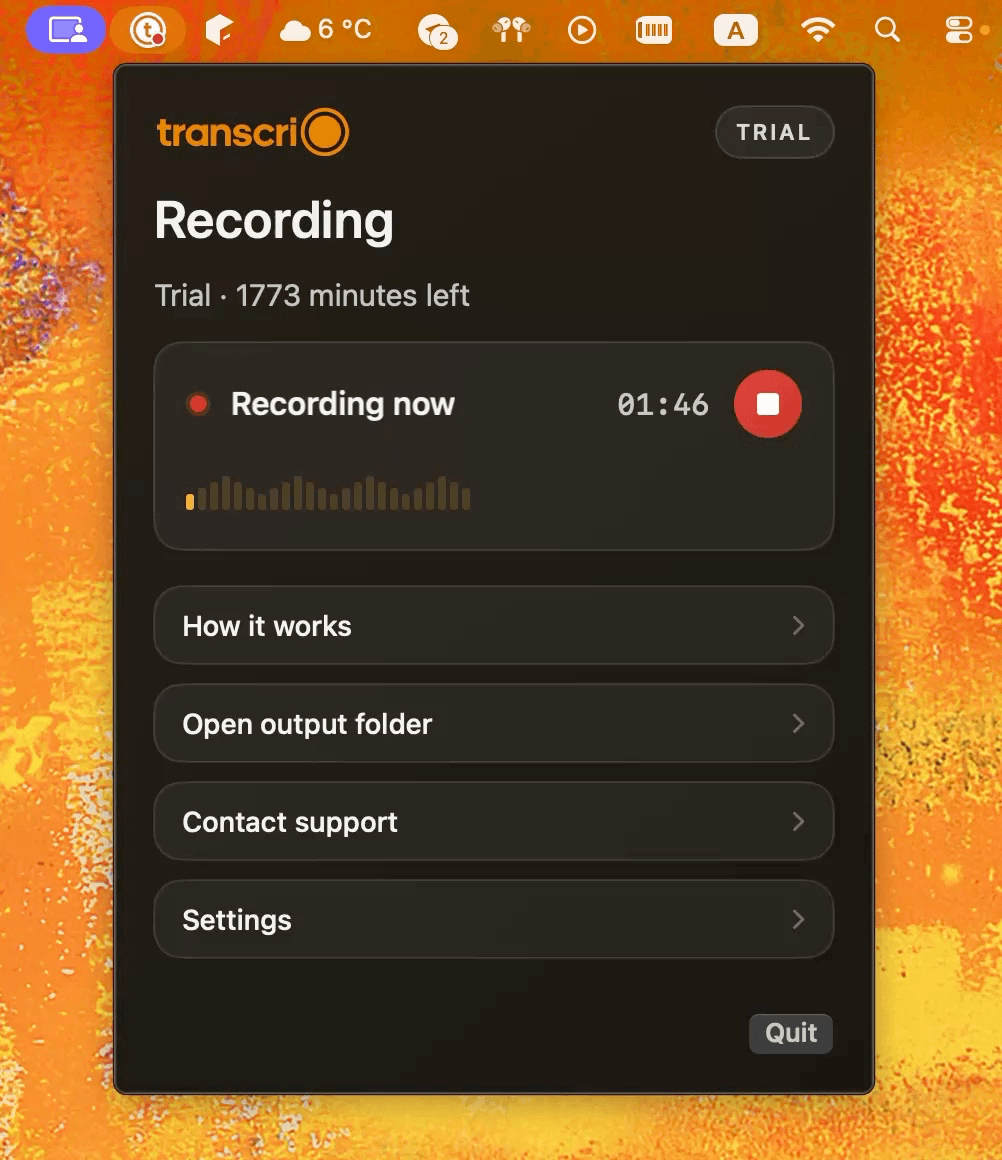
Some call apps do not provide a simple recording feature, and some platform recorders require host permissions or visible meeting controls. Download Transcrio, sign in, and complete the macOS microphone and system-audio permissions before the call starts.
Run a short test recording before an important FaceTime call. The goal is to confirm that your Mac captures the audio path you actually use, then keep the real call simple: open the recorder, start before details begin, and stop when the conversation ends.
- Use the same headphones or speakers you plan to use on the real call.
- Keep the Mac awake until the recording is saved.
- Avoid switching audio devices mid-call.
- After the call, review the transcript before sending any follow-up notes.
See the Transcrio workflow
From recording on a Mac to a local transcript and summary.
Take a 1-minute interactive tour — no signup required.
Open in a new tabWhat you should have after the call
A FaceTime call might need a different output from a scheduled meeting. The useful result depends on why you recorded the conversation in the first place.
A good recorder-first workflow should leave you with materials you can act on later, not just a file you forget in Downloads.
- The original audio file for exact wording and tone.
- A searchable transcript for names, dates, commitments, and quotes.
- A concise summary organized around the call's purpose.
- A follow-up note, decision list, or personal reference you can review later.
Example: choose the right note format
For family planning, the note may need dates, decisions, shared responsibilities, and open questions. For a coaching call, it may need observations, exercises, and next steps. For a customer call, it may need objections, commitments, and a follow-up email.
Use the transcript as the source and shape the summary around that job. This is where Transcrio is different from a plain recorder: the recording becomes a working text artifact, not just an audio file.
Keep the original audio
If the summary misses a detail, the transcript and source audio let you verify what was actually said. That matters when the conversation includes dates, names, quotes, or commitments.
Store the output in the same folder where the rest of the relationship or project context lives. A call recording is most useful when it is easy to find next to the work it supports.
Next steps
FAQ
Can I record FaceTime with Transcrio?
Transcrio is built for local Mac audio recording workflows. Whether a specific FaceTime setup captures the audio you need can depend on macOS permissions and routing, so verify with a short test before an important call.
Should I use screen recording for FaceTime notes?
Usually no if your goal is notes. A screen recording creates a video file, while a recorder-first workflow gives you source audio, transcript, and summary outputs for review.