How to record YouTube lecture or webinar audio on Mac

Not every valuable lecture or webinar gives you a download, transcript, or replay that is easy to search. If you can hear the session on your Mac, a recorder-first workflow can help you keep the audio, create a transcript, and turn the important parts into study notes or a work reference.
Short answer
If you can play the lecture or webinar on your Mac and you are allowed to record it, use a local recorder to save the audio first. Then turn that source file into a transcript, summary, and structured notes you can search later.
This is most useful when the platform transcript is missing, inaccurate, hard to export, or tied to a replay that may disappear. If the provider already gives reliable captions, slides, notes, or an exportable transcript, use those instead of making another recording.
Start from the retrieval problem
The reason to record a YouTube lecture, webinar, or online class is usually not to collect another media file. It is to make the content searchable after the session ends.
A transcript lets you find the part where a term, example, framework, or assignment was explained. A summary turns the long session into notes you can review without replaying the whole thing.
- Record when the platform does not provide a useful transcript.
- Record when the replay may disappear or is hard to search.
- Skip recording when the provider already gives reliable notes, slides, or captions that solve the job.
Set up the Mac before playback
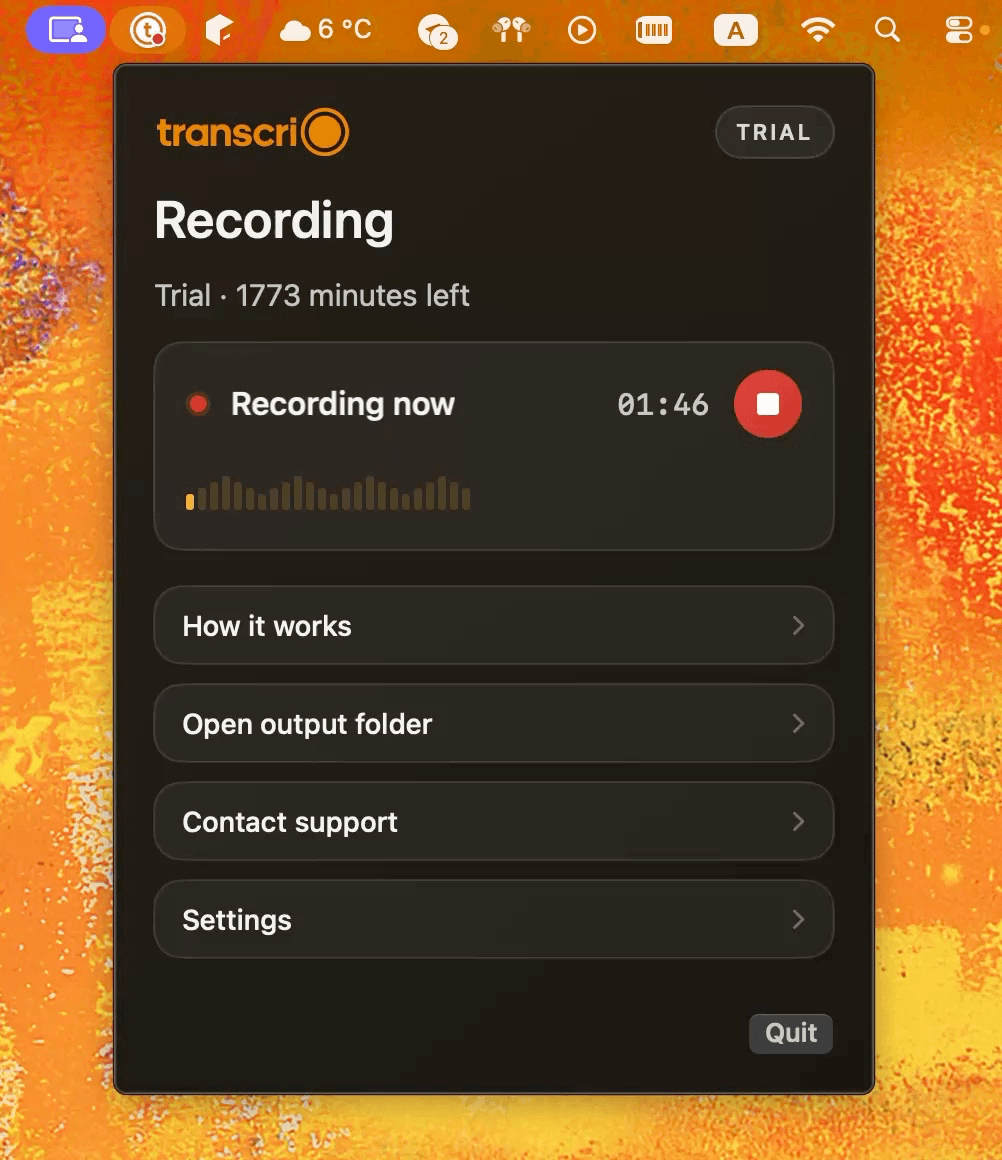
Open the lecture, webinar, or stream on your Mac and set up Transcrio before the useful section starts. Download Transcrio, sign in, and complete the macOS permissions for microphone and system audio capture before you rely on it for a live session.
The same workflow can cover browser playback, live streams, training videos, and online classes. Keep the Mac awake until the recording is saved. If the internet drops, the local recording is still the artifact you protect first; transcription can happen after the connection is stable again.
- Start recording before the section you care about begins.
- Avoid changing headphones or output devices during the session.
- Keep enough disk space for the local audio file.
- Stop recording when the useful section ends, then let the app save the file.
See the Transcrio workflow
From recording on a Mac to a local transcript and summary.
Take a 1-minute interactive tour — no signup required.
Open in a new tabWhat you should have after the session
Do not treat the first transcript as the final study document. Use it as the searchable source, then turn it into notes that match the reason you recorded the session.
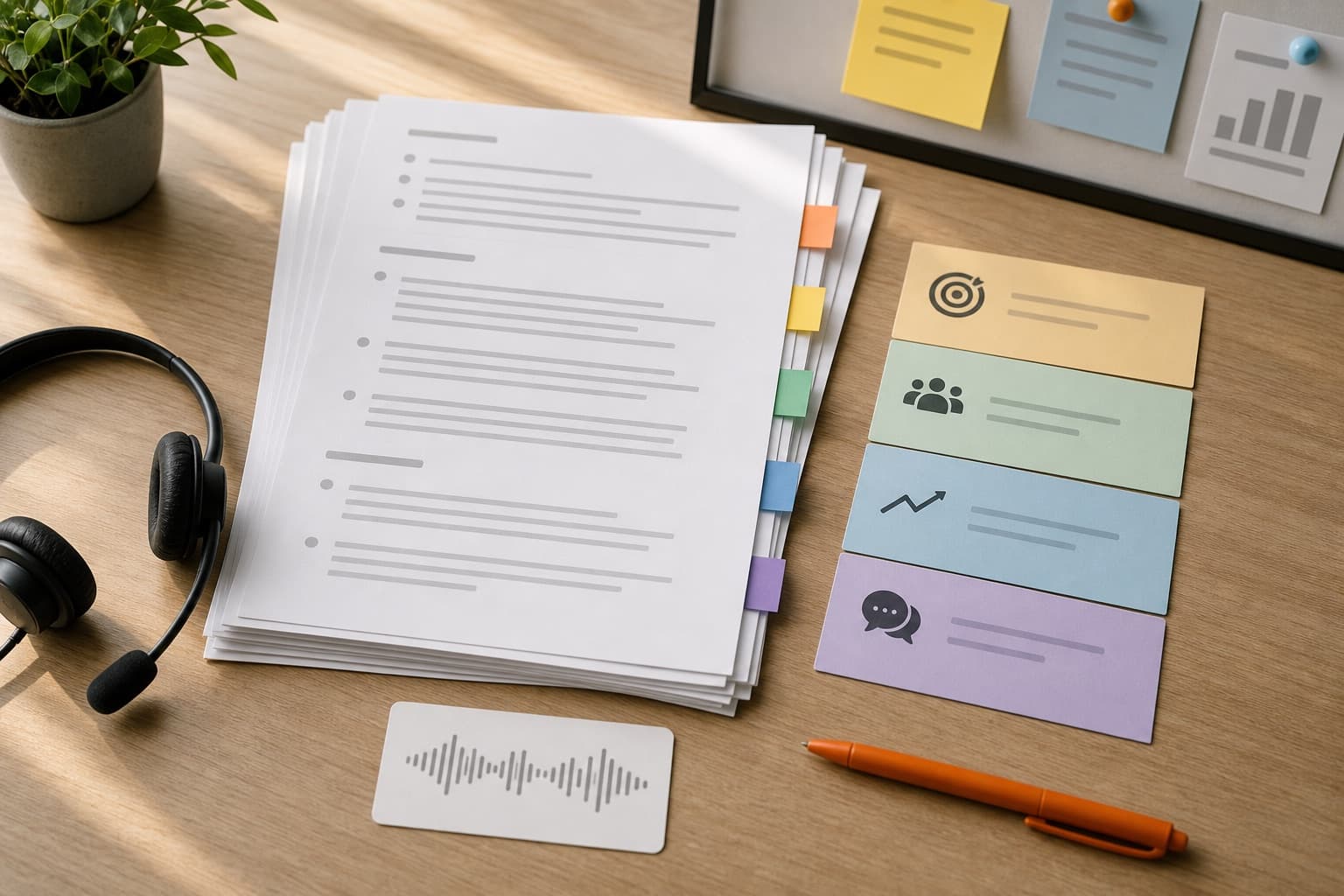
A useful recording workflow should leave you with a compact set of materials, not just another long media file.
- The original audio file for replaying exact explanations.
- A searchable transcript for terms, examples, quotes, and assignments.
- A summary organized around the concepts or decisions that matter.
- A study note, research note, or work reference you can revisit without replaying the whole session.
Example: turn a lecture into study notes
For a lecture, ask the summary to extract key terms, plain-language explanations, examples, formulas or frameworks, timestamps to revisit, and a short quiz. That gives you a review document instead of a raw transcript.
For a product webinar, change the output: ask for use cases, limitations, pricing mentions, integration details, objections, and follow-up questions. The same transcript becomes a work reference instead of a study guide.
Keep source audio beside the notes
Summaries can compress too much. Keeping the original audio means you can go back when wording, tone, or a missing context window matters.
Store the audio, transcript, and notes under one folder for the course, project, or research topic. That makes the archive useful later instead of becoming a pile of anonymous downloads.
Next steps
FAQ
Can I record audio from any website on Mac?
Transcrio is designed to record local Mac audio workflows, including browser audio, but you still need permission or a valid right to record the content you are capturing.
Is a YouTube transcript enough?
Sometimes. If the built-in transcript is accurate and easy to export, use it. Record locally when you need your own source audio, a more reliable workflow, or notes that are stored with your other materials.