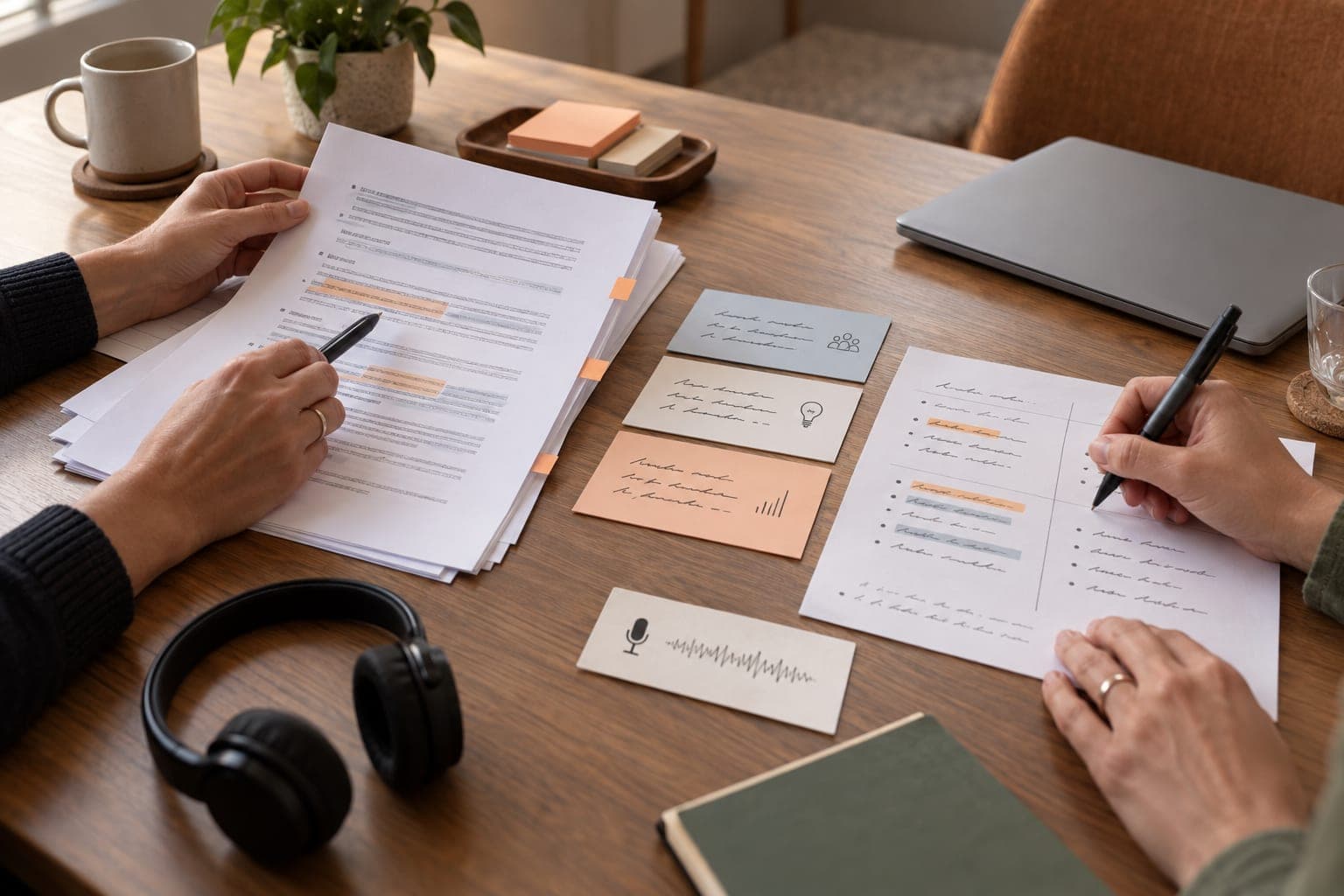
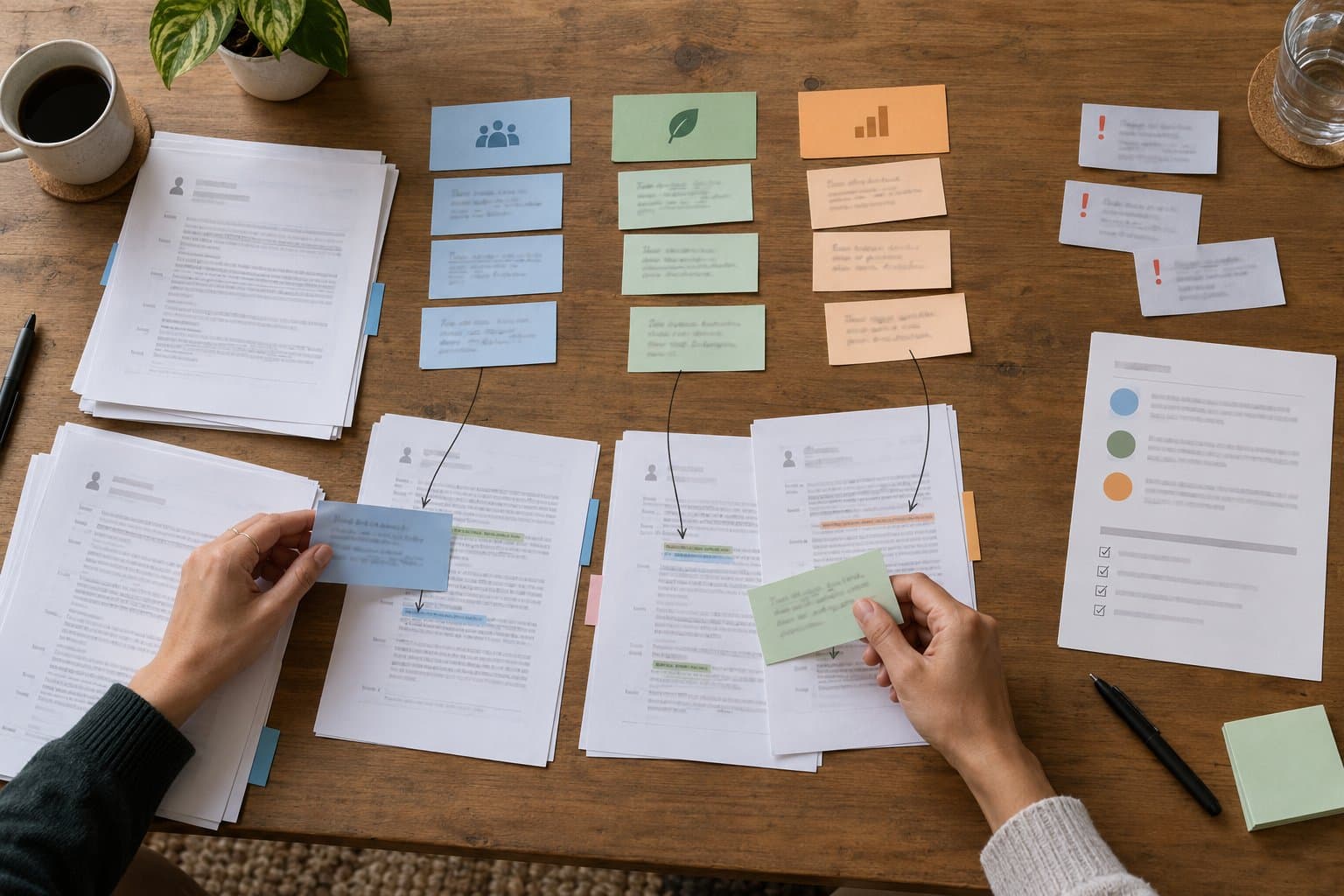
Lecture Transcript to Flashcards: A Checked Anki Workflow
Published · Updated
A lecture can end with ninety minutes of audio, scattered notes, and no clear revision plan. Even when a transcript exists, it still contains repeated explanations, transcription mistakes, side comments, and details that will never appear on an exam. Transcrio can handle the path from Mac recording to transcript and a study-shaped summary; you then check that material against the source audio before turning it into flashcards.
Short answer
Start with one lecture transcript and the matching slides or course notes. Build a topic outline, correct uncertain terms against the source, then turn one testable idea at a time into Anki-ready question-and-answer pairs. Keep the source cue until every card has been checked.
If the lecture does not provide a useful transcript, record it with Transcrio on your Mac. Keep Transcribe after recording and Generate summary after transcription enabled. On Pro or Power, save lecture-specific Summary instructions that ask for a topic outline, key terms, examples, likely review questions, draft flashcards, and a CHECK AUDIO list for uncertain passages. If the course already gives you a reliable exportable transcript, use that instead of making another recording.
Use Transcrio from recording to the first study pack
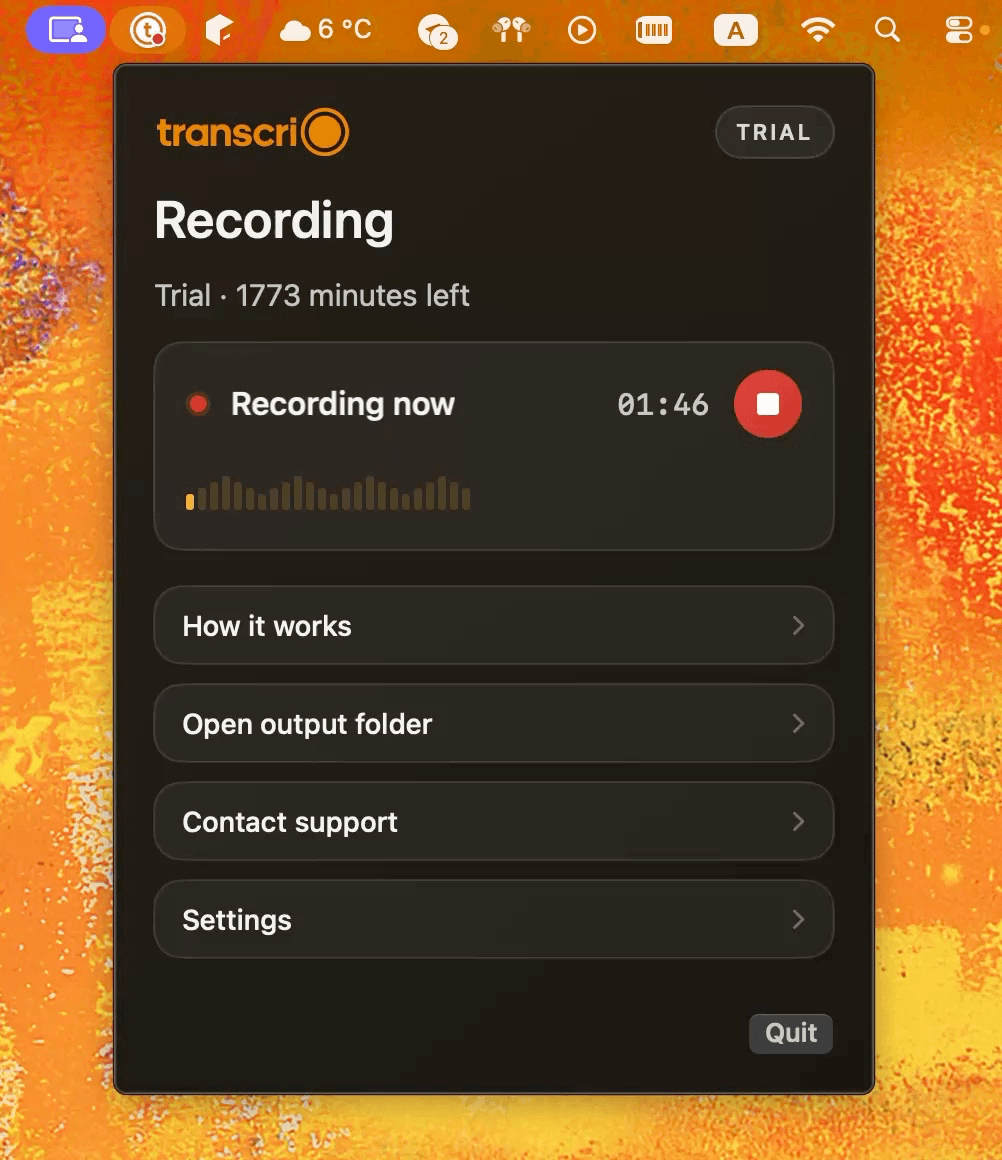
Transcrio is a macOS recorder for microphone and system audio. It keeps the source recording in a local folder and can create a transcript and summary after you stop. That covers the part of the study workflow most generic flashcard advice skips: getting your own searchable source when an online class, webinar, or in-person lecture does not provide one. Download Transcrio and test a short lecture segment before the class you care about.
For an online lecture, system audio captures the sound playing on the Mac. For an in-person class, the selected microphone captures the room. If your own questions or a discussion matter too, record microphone and system audio together. The local source audio remains available when a technical term, number, or sentence in the transcript needs checking.
- Online lecture or webinar: record the Mac's system audio.
- In-person class: choose the microphone that captures the lecturer clearly.
- Mixed class or Q&A: keep microphone and system audio in the same recording.
- After recording: keep the audio, transcript, summary, and reviewed study materials together.
See the Transcrio workflow
From recording on a Mac to a local transcript and summary.
Take a 1-minute interactive tour — no signup required.
Open in a new tabSet up the study workflow before the lecture
Do not configure the recorder while the lecturer is already introducing the topic. Install and sign in to Transcrio, grant the macOS microphone and system-audio permissions you need, and make a 20-second test with the same headphones, microphone, and lecture app you will use in class.
In Transcrio Settings, leave Transcribe after recording enabled when you want searchable text. Leave Generate summary after transcription enabled when you also want the first study pass. A short trial recording is useful for checking capture and output; the 15-minute trial is not intended to cover a full university lecture.
If the classroom or travel connection drops, protect the recording first. Transcrio can keep recording locally and complete transcription after the Mac is online again. Keep the app open long enough to confirm that the transcript and summary have actually finished before relying on them.
- Play a short spoken clip and say one sentence into the selected microphone.
- Stop the test and confirm that every source you need is audible.
- Check that the local recording appears in the expected folder.
- Confirm that transcription and summary generation are enabled before the real class.
Save lecture-specific Summary instructions
Starter creates summaries with Transcrio's built-in instructions. Pro and Power let you edit Summary instructions in the macOS app Settings and save them as the default for new summaries. This is useful for a course where every lecture should produce the same study structure. Compare the plans, then use the custom summary prompt guide to keep reusable instructions focused and reliable.
The saved instructions apply to new summaries rather than one selected recording. Use one stable lecture prompt across similar classes, then change or reset it before switching to a different workflow such as client calls or interviews. There is no separate per-recording prompt editor in the current app.
- Open Settings and keep Generate summary after transcription enabled.
- Find Summary instructions under the After recording settings.
- Replace the default text with the lecture prompt you want to reuse.
- Choose Save instructions before starting the recording.
- Reset or update the instructions when the next recording needs a different result.
Copy this lecture prompt into Transcrio
Use only the transcript as the factual source. Create a study pack with: 1. a five-sentence overview, 2. a topic outline, 3. key terms with the meanings given in the lecture, 4. processes or mechanisms in order, 5. examples, comparisons, and exceptions, 6. up to 20 draft flashcards with Front, Back, and Source cue fields, 7. five application or exam-review questions, and 8. a CHECK AUDIO list for unclear wording, names, numbers, formulas, or contradictions. Do not add outside facts. If the transcript does not support an answer, mark it VERIFY instead of guessing.
This prompt makes the first summary more useful than a generic recap. It does not create an Anki deck or an interactive quiz inside Transcrio. It creates a structured draft beside the transcript, ready for your review and for copying into the study tool you prefer.
Give the summary context after transcription
Leave Ask for call details after transcription enabled when the lecture needs a useful title or extra context. After the transcript is ready, Transcrio can ask for a title, description, and speaker names before creating the summary. The summary then uses that information instead of working only from generic speaker labels.
A practical title is Biology 201 — Week 4 — Cell signaling. In the description, add only context the summary needs, such as Focus on the pathways compared in the exam guide; exclude course announcements. For a seminar or Q&A, rename speakers when separating the lecturer's explanation from student questions matters. If you skip the dialog, the summary is still created.
Adjust the prompt to the way the course is assessed
The same prompt should not serve every subject. A history lecture may need chronology, causes, consequences, and competing interpretations. A biology lecture may need structures, mechanisms, examples, and exceptions. A mathematics lecture may need definitions, assumptions, and worked methods, but formulas still need visual checking against the slides or textbook.
Keep the output smaller than your impulse suggests. A useful first pass might contain ten key terms and fifteen draft cards. Asking for a hundred cards rewards coverage, not judgment, and makes errors harder to notice.
- Essay exam: emphasize arguments, evidence, contrasts, and possible prompts.
- Problem-solving exam: emphasize conditions, method selection, steps, and common mistakes.
- Fact-heavy exam: emphasize precise definitions, relationships, and exceptions.
- Weekly review: ask for a concise outline, five recall questions, and an uncertainty list.
Start with one lecture and one exam scope
Put the transcript, lecture slides, syllabus objective, and any required reading for that session in one working folder. If the course provides a reliable transcript, use it. If you recorded the lecture yourself, keep the audio beside the transcript so you can replay uncertain wording.
Define the scope before generating anything. A lecture on three mechanisms should become three topic groups, not one undifferentiated deck. Exclude announcements, housekeeping, jokes, repeated examples, and material the lecturer explicitly marked as out of scope.
- One lecture or one tightly related topic set.
- The learning objectives or syllabus section for that session.
- The transcript plus slides or notes you are allowed to use.
- A short list of uncertain passages that need replay or textbook checking.
Make a checked study outline before making cards
Whether the first outline came from Transcrio's custom summary instructions or another AI tool, review it before drafting the final cards. The outline is where you catch missing topics, merged concepts, and confident-sounding transcript errors without reviewing a hundred separate cards.
A useful outline separates definitions, mechanisms, comparisons, worked examples, formulas, and exceptions. It should also label anything that the transcript does not support clearly instead of filling the gap with a guess.
Copyable prompt: Using only this lecture transcript and the attached course material, create a study outline grouped by topic. For each topic, list the core idea, the explanation given in the lecture, one example, and any exception or uncertainty. Do not add outside facts. Mark unclear transcript passages as CHECK SOURCE.
Turn the outline into atomic flashcards
An atomic flashcard tests one answerable idea. If a card asks for a definition, mechanism, example, exception, and comparison at once, it is hard to review and hard to grade honestly.
Draft cards from the checked outline, not directly from the full transcript. Keep the front specific enough that you know what kind of answer is expected, and keep the back short enough to recall before reading it.
- Definition card: What does this term mean in the lecture's context?
- Mechanism card: What sequence connects the cause to the result?
- Comparison card: What is the one distinction that separates A from B?
- Application card: Which principle explains this example?
- Exception card: When does the general rule not apply?
Use a prompt that preserves uncertainty
The Transcrio prompt above already asks for Source cue and CHECK AUDIO fields. Keep those review aids while you work. If you draft more cards in another AI tool, require the same fields, then remove the review column only after the deck is checked.
Copyable prompt: Create draft flashcards from the checked outline. Use one testable idea per card. Return three columns: Front, Back, and Source check. Keep answers concise. Do not invent missing facts. If the transcript is ambiguous, write VERIFY instead of completing the answer. Prefer explanations and distinctions over trivia.
If the tool produces ten versions of the same definition, keep the clearest one. If it produces facts that never appear in the lecture or assigned material, remove them unless you deliberately verify and add an outside source.
Verify the deck before you import it
Reviewing the deck is not optional. Transcription errors can turn a correct explanation into a plausible but false card, especially for names, technical vocabulary, numbers, formulas, and negation.
Read each front without looking at the answer. If more than one answer would reasonably fit, rewrite the question. Then compare the back with the transcript passage, slides, or audio. Delete cards that only test wording and add no useful recall.
- Accuracy: the answer matches the source material.
- Scope: the card belongs to the lecture and likely assessment goals.
- Clarity: the front points to one expected answer.
- Size: the back contains one idea rather than a paragraph to reread.
- Duplication: another card does not test the same fact in different words.
Know what an audio transcript cannot show
Transcrio's summary works from the transcript, with any title, description, or speaker labels you add during the post-recording flow. It does not see a diagram, equation, slide annotation, or gesture simply because the lecturer referred to it aloud.
When the lecturer says this curve, the red box, or the formula on screen, mark that item for slide review. Add the missing visual context yourself before turning the explanation into a card. For a visual course, keep the official slides next to the transcript or use a screen-recording workflow when you have permission and the picture is essential.
Prepare an Anki-ready text file
Anki can import a UTF-8 plain-text file whose fields are separated by tabs, commas, or semicolons. Put the question in the first field and the answer in the second, preview the field mapping during import, and keep a reviewed copy of the source deck before adding it to your collection. The Anki manual explains the supported text-file format and import options.
For a simple deck, use two columns: Front and Back. Add a third Tags column only when tags will help you filter by course, week, or topic. Avoid putting semicolons inside a semicolon-separated answer unless the field is escaped correctly; tab-separated text is often easier for generated drafts.
Example: split one explanation into useful cards
Suppose the lecturer explains a process, gives one common example, and then names an exception. Do not paste the whole explanation on the back of one card. Create one card for the process, one for the example, and one for the exception. Each card should still make sense without the other two open beside it.
After drafting, add one application question that asks you to recognize the process in a new scenario. That checks understanding better than another card that repeats the definition.
Example: from one lecture to a reviewed deck
Imagine a 75-minute online lecture with no downloadable transcript. Before class, you save the lecture prompt in Transcrio and test system-audio capture. After the lecture, Transcrio keeps the local recording, creates the transcript, and produces a summary with the topic outline, key terms, fifteen draft cards, five review questions, and three passages marked CHECK AUDIO.
You replay those three passages, correct one technical term, compare two formula references with the slides, and delete four low-value cards. The remaining question-and-answer pairs go into a tab-separated text file for Anki. The audio, transcript, summary, and reviewed deck stay together in the course folder, so every card can be traced back to its source.
Choose a different path when it fits better
Transcrio is most useful when you need your own Mac recording, transcript, and reusable summary. It is unnecessary when the course already provides a reliable transcript and source recording that you can keep. A lecture-specific study platform may be a better fit when you want automatic slide analysis, a built-in course workspace, live captions, or interactive quizzes without moving material between tools.
Use screen recording when the visual demonstration is the source. Use a live-caption tool when real-time accessibility is the priority. Use the professor's official notes when they already match the assessment better than a generated summary would.
Keep four outputs when you finish
A finished workflow should leave you with a small set of materials you can audit later, not only a deck whose origin is unclear.
- The original transcript and, when available, the source audio.
- A checked outline organized by lecture topic.
- A reviewed Anki-ready text file or deck.
- A short VERIFY list for claims that still need the slides, textbook, or instructor.
Next steps
FAQ
Can AI turn a lecture transcript into Anki flashcards?
Yes, but treat the cards as drafts. Make a checked outline first, generate one idea per card, and verify every answer against the transcript, slides, textbook, or audio before importing it.
How many flashcards should one lecture create?
There is no fixed number. Keep the cards that test the lecture's important definitions, mechanisms, comparisons, applications, and exceptions, then delete duplicates and low-value trivia.
Does Transcrio make flashcards or quizzes?
Transcrio has no dedicated flashcard deck, Anki export, or interactive quiz feature. On Pro and Power, custom Summary instructions can produce a flashcard-style draft and review questions from the transcript; check them, then move the final material into Anki or another study tool.
Which Transcrio plans support a custom lecture prompt?
Starter uses the built-in summary instructions. Pro and Power let you edit and save custom Summary instructions in the macOS app Settings for new summaries.
Does the lecture prompt apply to only one recording?
No. It is saved as the default for new summaries. Reuse it for similar lectures, then change or reset it before recording a session that needs a different summary format.
Can Transcrio include information from lecture slides?
The summary is based on the transcript and any title, description, or speaker labels you add. Check diagrams, equations, and other visual-only information against the official slides before creating cards.
What should I do when the lecture transcript is wrong?
Mark the passage as uncertain, replay the source audio, and compare it with the slides or required reading. Do not create a study card until the answer is supported.