How to record Zoom, Google Meet, or Teams calls when you're not the host

Zoom, Google Meet, Teams, and other remote meeting tools often give recording controls to the organizer. If the host records, the recording may stay in their account, their cloud storage, or their team's archive. That can be useful, but it does not always solve your job: sometimes you need your own copy so you can review the call, search the transcript, write follow-up notes, or keep the source audio with your project files.
Short answer
If you cannot use the host's recording controls, you have three practical options: ask the organizer to record and share the file, use the platform's transcript or captions if they are good enough, or record locally from your Mac.
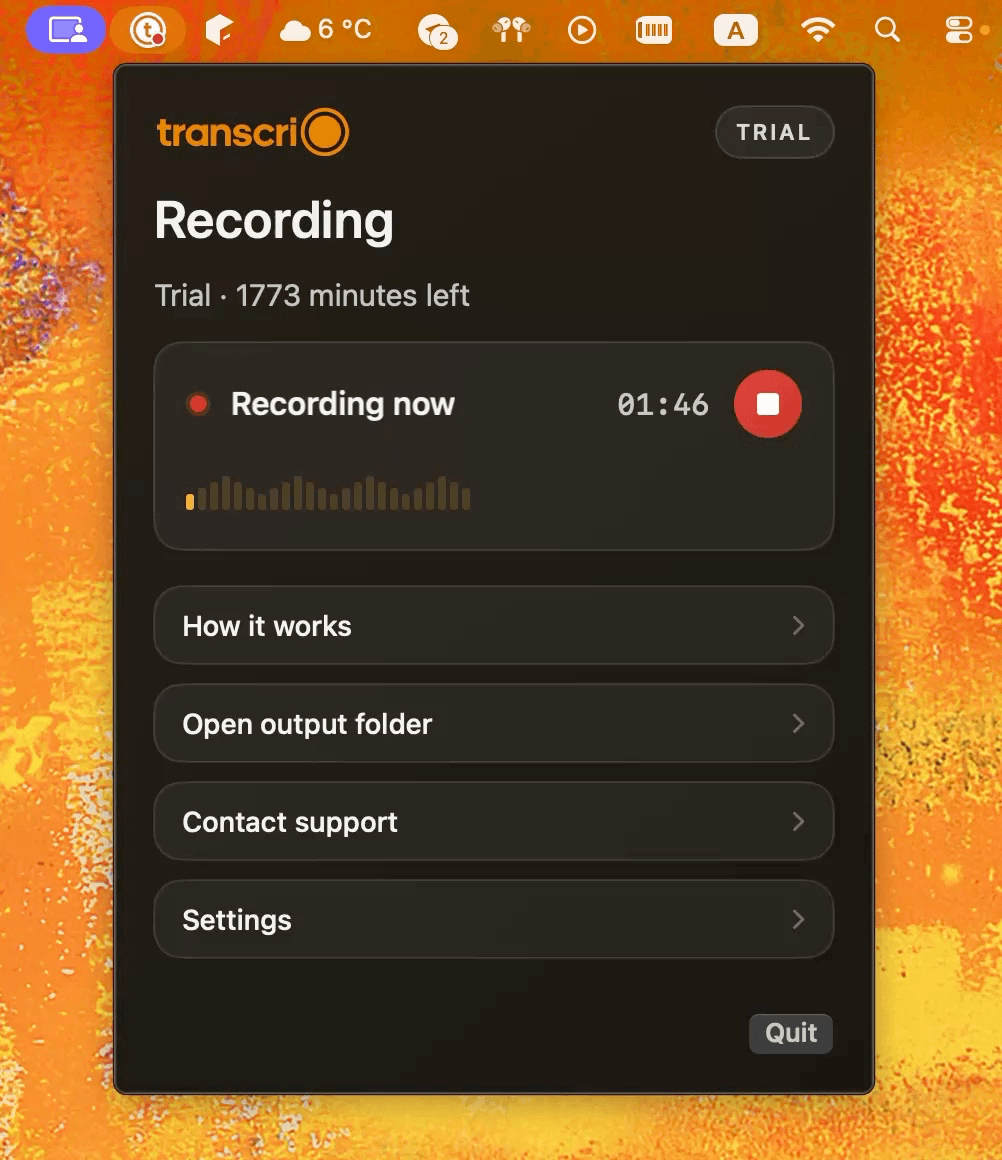
A local recorder is the right path when you need your own working copy: source audio, transcript, summary, and follow-up notes stored with your project. With Transcrio, the workflow is simple: set up the Mac app before the call, ask for consent, start recording, stop when the call ends, then review the transcript and summary.
Choose the right recording option
The first question is not which button to press. It is which artifact you need after the call. If the organizer's recording will be shared with you quickly and stored where you can use it, ask them to record through the meeting platform. That is often the cleanest route for team meetings and official archives.
If the host's recording stays with them, is delayed, or does not give you the transcript and summary workflow you need, a local recorder can be the better personal workflow. The output is yours to store with the client, candidate, support case, research note, or project folder.
- Ask the organizer to record when the meeting needs an official shared copy.
- Use platform transcripts or captions when they are accurate enough and exportable.
- Take written notes when recording is not allowed or would make the conversation worse.
- Use a local Mac recorder when you need your own source audio, transcript, and summary.
Prepare Transcrio before the call
Set up the recorder before the meeting starts. Download Transcrio on the Mac where you will join the call, sign in with your email, and complete the first-run permissions. The first successful sign-in starts the trial: 15 minutes of recording/transcription usage and 7 days to try the workflow.
In macOS, Transcrio needs microphone access for your voice and Screen Recording permission for system audio capture. The microphone and system audio guide includes a short test for checking both sources before an important call, while the client, candidate, or customer is not already waiting.
- Install the Mac app from the Download page.
- Sign in with the same email you use on the website.
- Grant Microphone and Screen Recording permissions when macOS asks.
- Keep Transcribe after recording enabled if you want the transcript and summary to start automatically.
- Keep Prevent Mac sleep during recording enabled for longer calls.
See the Transcrio workflow
From recording on a Mac to a local transcript and summary.
Take a 1-minute interactive tour — no signup required.
Open in a new tabRecord the call locally
At the start of the meeting, make the consent moment explicit. Say that you would like to record locally so you can write accurate notes or follow-up, then wait for agreement. If someone declines, do not record.
When the useful part of the call is about to begin, click Start recording in Transcrio. Join the meeting normally in Zoom, Google Meet, Teams, or another call tool. Transcrio does not join as a bot and does not need to be the meeting organizer; it records from your Mac.
- Start recording before the details begin, not after the important answer.
- Avoid changing audio devices mid-call unless you have tested that setup.
- Keep the Mac awake and connected to power for longer sessions.
- Click Stop recording when the call ends and let the app save the local file.
What you should have after the call
After you stop recording, keep the source audio file. That is the durable copy you can return to if the transcript misses a name, number, tone, or exact phrase. The transcript is for search and review; the summary is for action.
A useful result is not just a long transcript. You should finish with a small set of artifacts that can actually move the work forward.
- A local audio file for the original source.
- A transcript you can search when details matter.
- A summary with decisions, open questions, risks, and follow-up items.
- A cleaned-up note or email draft you can review before sharing.
Example: client call follow-up
For a client or sales call, use the transcript to verify names, numbers, commitments, and dates. Then shape the summary around what the client asked for, what you promised, objections or risks, and the next owner for each follow-up.
For recruiting interviews, the same workflow can become a human-reviewed scorecard note linked to transcript evidence. For support calls, it can become a bug report, knowledge-base draft, or customer follow-up. Pro and Power plans can use custom summary prompts for these repeatable formats.
- Store the audio, transcript, and summary under one project or account folder.
- Review any outbound notes before sending them to the other participants.
- Upgrade from trial or subscribe when you need more recording and transcription minutes.
Use this checklist during the call
A simple checklist is easier to follow than a long policy document while you are preparing for a call. Use this sequence when you are not the organizer and you still need your own notes afterward.
If any step fails, pause and switch to written notes or ask the organizer to use the official platform recorder.
- Confirm this is a meeting you can record.
- Tell participants you want to record locally and why.
- Open Transcrio and confirm your Mac permissions are already done.
- Start recording before the useful part begins.
- Stop recording when the call ends.
- Review the transcript and summary before sharing any follow-up.
Know when the organizer should record instead
Local recording is not a universal replacement for the platform's recording flow. If the meeting needs a centralized company archive, automatic participant notices, admin controls, or a shared official copy, ask the organizer to record through the meeting tool.
Transcrio fits the cases where you need your own working copy on your Mac: client calls, interviews, support sessions, demos, research conversations, and ad hoc meetings where the host's recording would not give you a usable transcript and summary workflow.
Next steps
FAQ
Can I record a meeting if I am not the host?
Yes. Transcrio records from your Mac, so the workflow does not depend on host recording controls or a meeting bot.
Does Transcrio join Zoom, Google Meet, or Teams as a bot?
No. Transcrio records locally on your Mac. It is built for recorder-first workflows where the app does not become a meeting participant.
Should I use the platform recorder instead?
Use the platform recorder when the organizer wants an official shared recording. Use local recording when you need your own copy for notes, transcript search, and follow-up.
What do I get during the trial?
The first successful sign-in starts a 7-day trial with 15 minutes of usage, so you can test the recording, transcript, and summary workflow before choosing a paid plan.